KeyForge for Maya Documentation
Install KeyForge for Maya, learn how the sliders work, and set up hotkeys, the Pose Library and Selection Sets.
Requirements
Maya 2025, 2026 or 2027. Tested in Maya 2025 and 2027. Maya 2026 runs the same Python as 2025.
Install
Pick one of the two ways.
A. Drag and drop (recommended)
- Unzip the whole download.
- Start Maya and drag
KeyForge_drag_and_drop_install.pyinto a viewport.
KeyForge opens, its KEY button goes on the LP Tools shelf, and it gets an entry in the LP Tools menu. Click the button to show or hide the bar by the Time Slider. Maya remembers which when you restart. One install covers Maya 2025, 2026 and 2027. In another version, the button appears the first time you start it.
To remove it, choose LP Tools menu > KeyForge > Uninstall.
B. By hand, with two lines of Python
- Copy the whole
lp_keyforgefolder fromKeyForge\python\py311(Maya 2025 or 2026) orKeyForge\python\py313(Maya 2027) into your Maya scripts folder,Documents\maya\scripts. - Restart Maya, then run these lines in the Script Editor (Python tab):
import lp_keyforge
lp_keyforge.toggle()
To make a shelf button, select the lines and middle-mouse-drag them onto a shelf.
Update
Drag KeyForge_drag_and_drop_install.py from the new download into Maya. It replaces the old version, including a copy you put in your scripts folder by hand. If you installed by hand, replace the files in Documents\maya\scripts and restart Maya. Your settings are kept either way.
If you have KeyForge Lite installed, installing KeyForge removes it for you.
Start here

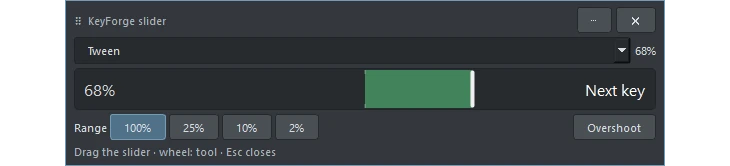
- The dot next to “KeyForge” shows what the sliders will change: the keys selected in the Graph Editor, the highlighted Time Slider range, or the current frame.
- Click anywhere on a slider and drag. While you drag, the slider shows what the end you are heading to means, plus the value. One Ctrl+Z undoes the whole drag.
- Right-click anything for options. A right-click on a slider gives a floating, movable, resizable slider with fine ranges and Overshoot.
- The ? button opens the Quick Guide.
- If a tool can’t run, the bar tells you why.
Hotkeys
Right-click the bar and choose Assign hotkeys, then type “KeyForge” in the Hotkey Editor’s search. Try the pop-up slider first. You can also make the S key run Smart Key.
The Graph Editor strip
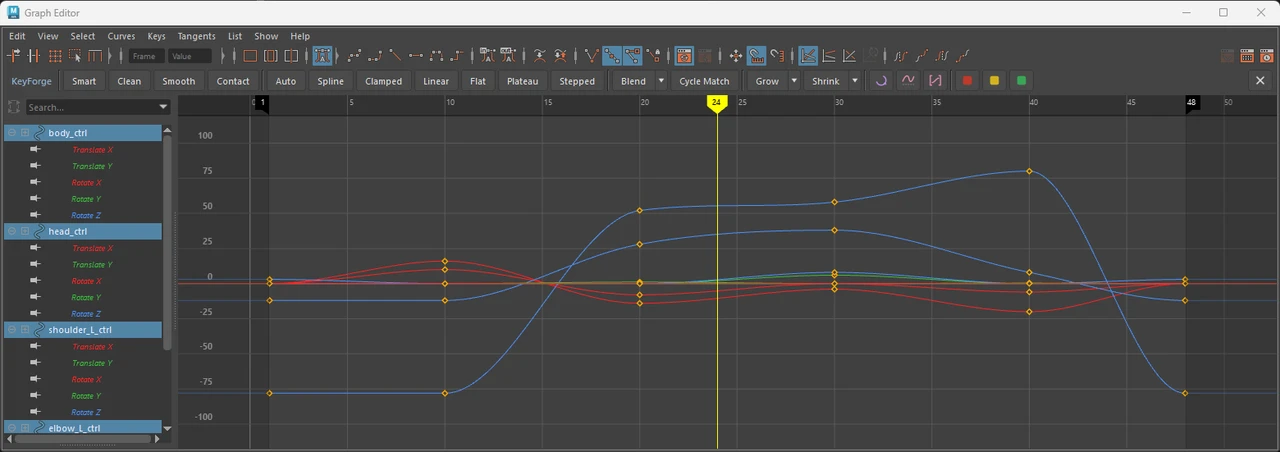
KeyForge adds a strip inside the Graph Editor so you can use the same tools while you look at curves. The dot next to “KeyForge” still shows what will change.
Pose Library and Selection Sets
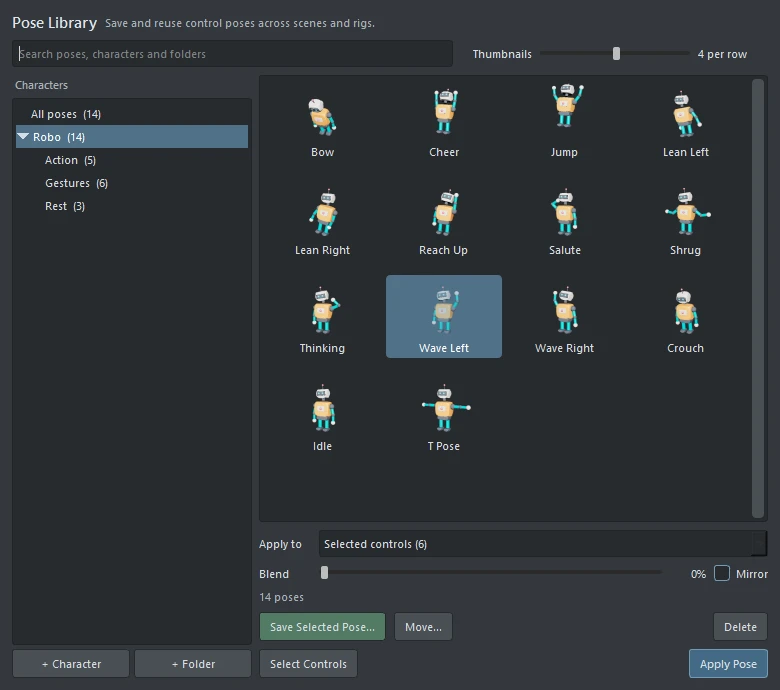
The Pose Library saves poses with a thumbnail, sorted by character into your own folders, with 2 to 8 thumbnails per row. Selection Sets are named groups of controls, such as Face, Eyebrows or Left Hand, that you select with one click.
Customize the bar
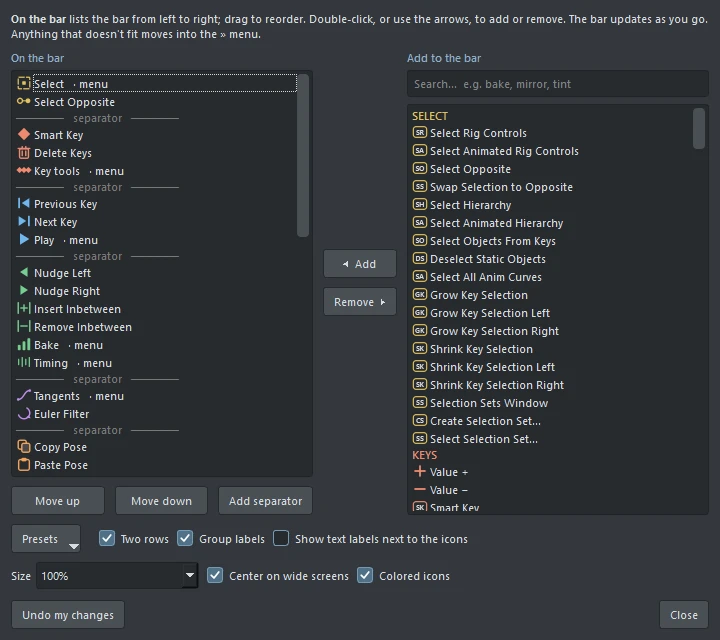
The bar is yours to arrange. The customizer lists the bar from left to right. Drag to reorder, or double-click or use the arrows to add or remove a tool. Search the list on the right to find one, such as bake, mirror or tint. The bar updates as you go, and anything that doesn’t fit moves into the » menu. You can also use presets, two rows, group labels and text labels, change the size, and undo your changes.
Sliders
- Blend to a pose: Tween, Blend to Neighbors, Default, Frame (with a reference frame box), Mirror, Buffer, Mirror from Frame and Partial Undo.
- Shape: Pull / Push, Scale From (average, default, frame or neighbor key), Smooth / Rough, Ease In / Out, Blend to Ease and Wave.
- Timing and cycles: Gap Mender, Bridge to Neighbors, Blend to Cycle and Time Shift (with stagger).
- World space: Tween, Neighbors, Frame, Cycle, Align, Copied Xform and Relationship, all keeping hands and feet where they belong.
Tools
- Keys and timing: Smart Key, copy, cut and paste keys and key times, nudge, insert and remove inbetweens, share and snap key times, bake on ones to fours, and simplify.
- Tangents: Smart, Clean, Smooth and Contact recipes, every Maya tangent type, blend toward any of them, cycle match and Euler filter.
- Key colors: tint keys red, yellow or green, then jump to, play or delete keys by color, plus Auto Tint.
- Pose and mirror: copy and paste pose, reset, mirror pose and animation (names like Arm_L, armL, leftArm, or pairs you save) and preferred default poses.
- World and rig: copy and paste world transforms and relationships, align, Global Offset, space switching that keeps the world position, temp controls, and temp pivots you rotate controls around. These are keyed and the rig is never touched.
- Navigate and view: previous and next key by color, play keys only, play on twos, time bookmarks, visibility modes, isolate, live motion trails with a tick per frame, and Graph Editor and Channel Box helpers.
Try it first
KeyForge Lite is free and gives you the Tween, Blend to Neighbors and Pull / Push sliders plus Smart Key, Reset Pose and Copy / Paste Pose.
Need help? Email support@LPTools.store and include the details listed on the Support page.