Roll Anything for Maya Documentation
Install Roll Anything for Maya, create a rig, key the control to roll any shape, and set up bounce, ground meshes and curve paths.
Requirements
Maya 2025, 2026 or 2027. Tested in Maya 2025 and 2027. Maya 2026 runs the same Python as 2025.
Install
Pick one of the two ways.
A. Drag and drop (recommended)
- Unzip the whole download.
- Start Maya and drag
RollAnything_drag_and_drop_install.pyinto a viewport.
Roll Anything opens, its ROLL button goes on the LP Tools shelf, and it gets an entry in the LP Tools menu. Click the button to open the window. Rigs re-solve by themselves when you edit the control’s keys, from the moment Maya starts. One install covers Maya 2025, 2026 and 2027. In another version, the button appears the first time you start it.
To remove it, choose LP Tools menu > Roll Anything > Uninstall.
B. By hand, with two lines of Python
- Copy
lp_roll_anything.pycfromRollAnything\python\py311(Maya 2025 or 2026) orRollAnything\python\py313(Maya 2027) into your Maya scripts folder,Documents\maya\scripts. - Restart Maya, then run these lines in the Script Editor (Python tab):
import lp_roll_anything
lp_roll_anything.show_ui()
To make a shelf button, select the lines and middle-mouse-drag them onto a shelf.
Update
Drag RollAnything_drag_and_drop_install.py from the new download into Maya. It replaces the old version, including a copy you put in your scripts folder by hand. If you installed by hand, replace the file in Documents\maya\scripts and restart Maya. Your settings are kept either way.
Start here
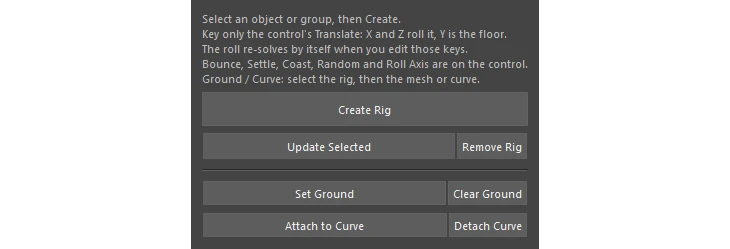
- Select an object or group and click Create Rig. A control appears on the ground under it.
- Key only the control’s Translate. X and Z roll the object, and Y is the floor height.
- Play. The roll re-solves by itself whenever you edit the control’s keys.
What it does
- Any shape, exact contact: it pivots on the real lowest point of the mesh (a corner, an edge, a curved side). A cube tips face to face, an egg wobbles, and an odd rock tumbles unevenly, all without slipping.
- One control: key the control’s X and Z and the object rolls that way, in any direction, turning as the path turns. Y is the floor height, so table tops and drops work too.
- Bounce: hard shapes hop a little when a face slaps down, and less when the move eases in.
- Settle and Coast: when the control stops, an object left on an edge or corner tips over onto a face under gravity. Coast adds momentum, so a shoved crate keeps rolling after a sudden stop.
- Uneven ground: pick any mesh as the ground and the object rolls over terrain, ramps and stairs, tilting with the surface under it.
- Wheel mode: lock the roll to one axis so wheels, barrels and coins steer like wheels instead of tipping over sideways.
- Follow a curve: attach the control to a curve and key one Path Position value.
Control attributes
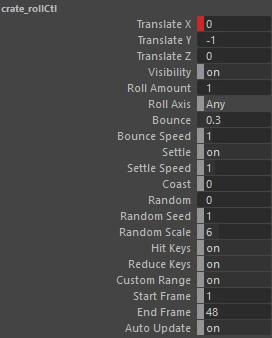
Bounce, Settle, Coast, Roll Axis (wheel mode) and Reduce Keys are attributes on the control.
Rolling over terrain or stairs
Select the rig, then the ground mesh, and click Set Ground. The object rolls over the surface and tilts with it.
Following a path
Select the rig, then a curve, and click Attach to Curve. Key one Path Position value.
What you get at the end
The result is plain rotation and translation keys, so scenes open, render and export (FBX, Alembic) without the tool installed. Remove Rig puts everything back as it was, keys included, and every action is one Ctrl+Z.
Need help? Email support@LPTools.store and include the details listed on the Support page.