Material Generator and Converter for Maya Documentation
Install Material Generator for Maya, build Arnold, Redshift and V-Ray materials from texture folders, name your textures, and edit the config file.
Requirements
Maya 2025, 2026 or 2027, tested with Redshift and Arnold. V-Ray support has not been tested in a copy of V-Ray.
Install
Pick one of the two ways.
A. Drag and drop (recommended)
- Unzip the whole download.
- Start Maya and drag
MaterialGenerator_drag_and_drop_install.pyinto a viewport.
Material Generator opens, its MAT button goes on the LP Tools shelf, and it gets an entry in the LP Tools menu. Click the button to open the window. One install covers Maya 2025, 2026 and 2027. In another version, the button appears the first time you start it.
To remove it, choose LP Tools menu > Material Generator > Uninstall.
B. By hand, with two lines of Python
- Copy
lp_material_generator.pycfromMaterialGenerator\python\py311(Maya 2025 or 2026) orMaterialGenerator\python\py313(Maya 2027) into your Maya scripts folder,Documents\maya\scripts. - Restart Maya, then run these lines in the Script Editor (Python tab):
import lp_material_generator
lp_material_generator.show()
To make a shelf button, select the lines and middle-mouse-drag them onto a shelf.
Update
Drag MaterialGenerator_drag_and_drop_install.py from the new download into Maya. It replaces the old version, including a copy you put in your scripts folder by hand. If you installed by hand, replace the file in Documents\maya\scripts and restart Maya. Your settings are kept either way.
If you used the old kb_maya_materialCreator_redshift.pyc, you can delete it and rs_logo.png, which are no longer needed.
Generate materials from textures
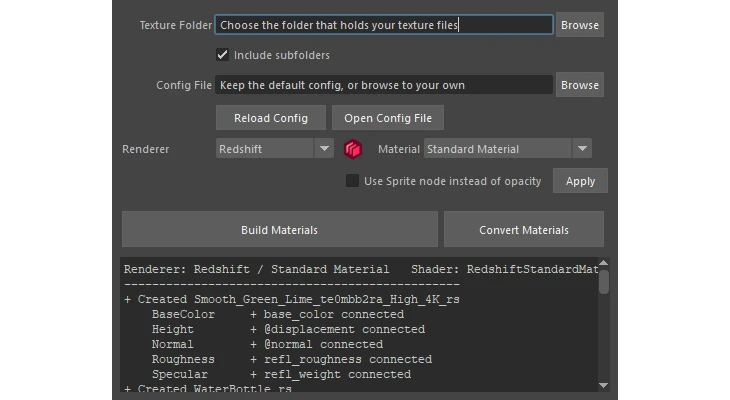
Point Material Generator at a folder of textures. It scans the folder and its subfolders, groups the files into materials by name, and builds one complete material per set in Arnold, Redshift or V-Ray. Every map is connected to the right attribute, with the right color space and helper nodes. Run it again after adding more maps and it only fills in what is missing.
Name your textures
Files are matched by the keyword at the end of the name, the same way Substance Painter exports them. For example Wood_Oak_BaseColor.png or Wood_Oak_Roughness.1001.exr (UDIM). Everything before the keyword is the material name.
Recognized keywords include BaseColor, Albedo and Diffuse, Metalness, Roughness, OcclusionRoughnessMetallic (ORM), Specular, Opacity, Emissive, Subsurface, and Normal. UDIMs and packed maps such as ORM are handled automatically.
Convert between renderers
Select materials, or convert the whole scene, between Arnold, any Redshift material type and V-Ray. Texture connections and values are kept, and one Ctrl+Z undoes the whole conversion.
The config file
On first launch the tool writes lp_material_generator_config.txt to Documents\maya\modules\LP_Tools\Data\MaterialGenerator. Edit it to change the texture keywords, the attributes they connect to, and the renderer options. The comments inside the file explain the format.
V-Ray
V-Ray support is built from V-Ray’s published attribute names and naming conventions. If you use V-Ray, try it and tell us what works or breaks.
Need help? Email support@LPTools.store and include the details listed on the Support page.